If you’ve already got a TikTok Shop running and you’re trying to list a product that falls outside your approved categories you’ve probably hit a wall that feels completely unexplained.
The button’s grayed out. The help center loops you back to setup guides. And every YouTube video about TikTok Shop covers how to open your shop, not how to grow it.
This guide fills that gap. Step by step, with the pre-conditions most sellers don’t know they need to meet first.
What “Expanding Product Categories” Actually Means on TikTok Shop
Expanding product categories on TikTok Shop refers to the process of requesting approval to list and sell products outside a seller’s currently approved category set within TikTok Shop Seller Center. Each category on TikTok Shop requires separate eligibility verification, and some require documentation before approval is granted.
Most sellers assume their shop operates like a general marketplace list anything, sell anything. That’s not how TikTok Shop works.
Your shop is approved for specific categories at setup. Every additional category is a separate approval. Some unlock automatically as your account matures. Others require you to submit documentation, meet performance benchmarks, or pass a manual review.
Here’s the thing: TikTok doesn’t surface this distinction clearly during onboarding. Sellers find out the hard way, mid-listing.
According to TikTok for Business and data compiled by Momentum Works in their 2023 Southeast Asia and Global E-Commerce Report, TikTok Shop surpassed $20 billion in global GMV in 2023 with U.S. seller registrations growing over 200% year-over-year. That’s tens of thousands of new sellers scaling into new product lines and running directly into category restrictions they weren’t warned about.
You’re not doing anything wrong. The system just wasn’t built for intuitive self-discovery.
Before You Request Anything: The Eligibility Conditions TikTok Doesn’t Publicize
This is what the TikTok Shop University article skips.
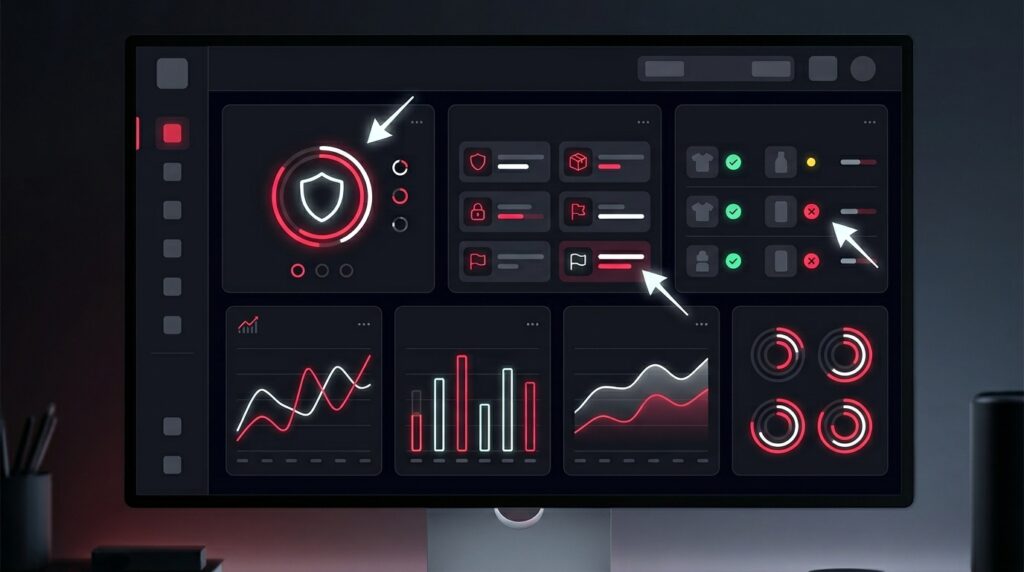
Submitting a category expansion request before your account meets the underlying conditions is a fast path to rejection and repeated rejections can flag your account for slower review cycles. Know where you stand before you click submit.
Account age and activity threshold
TikTok Shop typically requires your seller account to be active for a minimum of 30 days before category expansion requests are processed. Active means at least one completed order not just a live listing. Brand-new shops requesting additional categories immediately after setup are almost always auto-rejected.
Performance score baseline
Your shop’s overall performance score inside the Seller Center matters. Sellers with a customer service rating below 4.5, a high cancellation rate, or unresolved policy violations will find that category requests stall in review sometimes indefinitely. Fix your performance metrics first.
Existing category compliance
TikTok reviews whether your current approved categories have any active violations before granting new ones. One flagged listing in your current inventory can block an otherwise clean expansion request.
Look, if you’re in a situation where your account is under 30 days old or you’ve got an open dispute or policy flag, the category request process will not move forward until those are resolved. That’s the actual bottleneck. Not the form.
How to Request a New Product Category: The Actual Steps
To expand product categories on TikTok Shop, follow these steps:
- Log in to TikTok Shop Seller Center at seller-us.tiktok.com
- Navigate to Account → Shop Settings → Category Management
- Select the category you want to add and click Apply
- Upload all required documentation for that specific category
- Submit the request and monitor status under Pending Applications
Here’s the full walkthrough with context at each stage.
Step 1 Access Category Management
Log into your Seller Center account at seller-us.tiktok.com. From the left navigation panel, go to Account, then Shop Settings. Look for Category Management or Product Categories the exact label has varied across Seller Center UI updates, so if you don’t see it immediately, check under Shop Information.
Quick note: TikTok has updated the Seller Center UI multiple times since early 2024. If your panel layout looks different from guides published before Q3 2024, you’re likely on a newer version. The functionality is the same; the menu path may differ by one level.
Step 2 Browse Available Categories
You’ll see your currently approved categories highlighted. Categories available for application will appear with an Apply or Request Access button. Categories that are grayed out without an apply option are either not yet available in your region or require an invitation not a standard application.
Don’t confuse not yet available with denied. They’re different states.
Step 3 Check Category-Specific Requirements Before Submitting
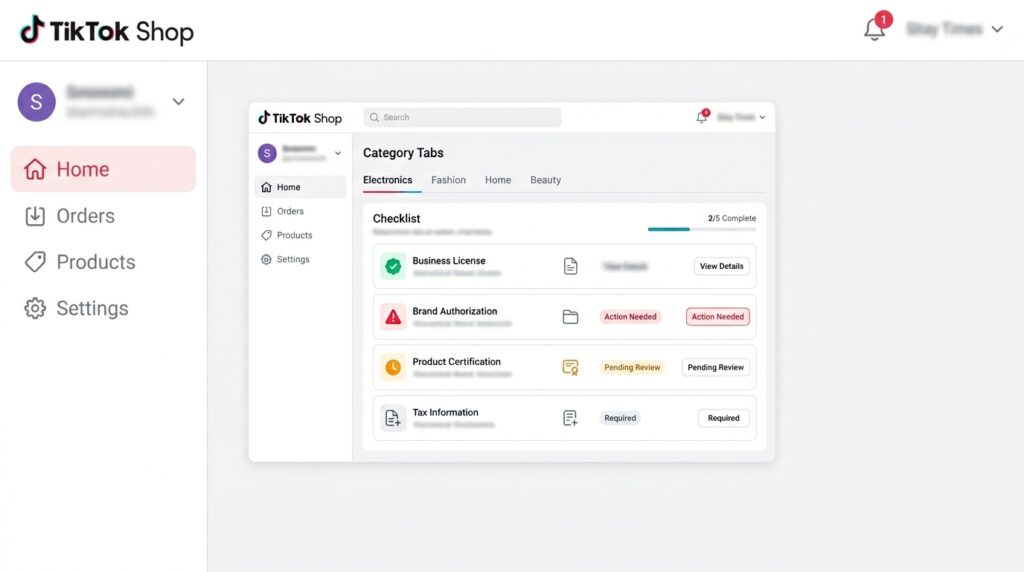
Each category has its own documentation requirements. This is where most sellers lose time they click apply and then discover mid-submission that they need documents they don’t have ready.
Pull the requirements first. Review them fully. Then gather documents. Then submit.
Step 4 Upload Documentation
The system accepts PDF, JPG, and PNG formats. File size limits apply typically 5MB per document. Make sure documents are legible, unexpired, and match the business name on your seller account exactly. Mismatched names between documents and your account registration are one of the most common rejection reasons.
Step 5 Submit and Track
After submitting, find your application status under Account → My Applications or Pending Requests (label varies). Standard review time is 3–7 business days. If you haven’t received a decision in 10 business days, contact TikTok Shop seller support directly. Applications can get stuck in the queue without automated notification.
Category-by-Category Document Checklist
This is the section that doesn’t exist anywhere else. Most guides tell you to upload required documents without telling you what those documents actually are by category type.
I’ve seen conflicting data across different TikTok help center versions some show condensed lists, others show expanded requirements depending on subcategory. My read is that the list below reflects current U.S. requirements as of mid-2025, but you should always cross-check against the live requirements shown inside your Seller Center application screen before submitting.
General Merchandise / Everyday Products
- Business license or EIN confirmation letter
- Government-issued ID matching account holder name
Health, Beauty, and Wellness
- Business license
- FDA facility registration number (for products regulated as cosmetics or OTC drugs)
- Product ingredient or safety documentation for claims-based products
- Brand authorization letter if selling another brand’s products
Food and Grocery
- FDA food facility registration
- State food handler permit or equivalent
- Certificate of Analysis (COA) for applicable products
- Nutritional labeling documentation
Electronics and Tech Accessories
- Business license
- FCC certification for applicable devices
- Brand authorization letter if reselling branded electronics
Branded / Licensed Goods (any category)
- Official brand authorization letter on brand letterhead
- Trademark registration documentation (if you own the brand)
- Distribution or reseller agreement
Apparel and Fashion
- Business license
- For children’s apparel: CPSC compliance documentation and CPSIA certificates
The Quick Comparison table below covers the most commonly applied-for categories side by side.
Quick Comparison
| Category | Best For | Key Document Required | Common Rejection Reason |
| Health & Wellness | Supplement/skincare sellers | FDA registration + safety docs | Missing COA or ingredient list |
| Food & Grocery | DTC food brands | FDA facility registration | No state food permit |
| Electronics | Tech accessory resellers | FCC cert + brand auth letter | Unauthorized brand resale |
| Branded Goods | Authorized resellers | Brand authorization letter | Expired or informal auth letter |
| Children’s Products | Apparel/toy sellers | CPSIA compliance certificate | Missing age-grading documentation |
What Happens After You’re Approved (And What to Do If You’re Rejected)
Approval means the category is immediately active. You can begin listing products under it without any additional steps. Your Seller Center dashboard will update to reflect the new approved category in your shop profile.
Rejection is more nuanced.
TikTok will send a notification specifying the reason usually one of three things: missing documentation, account eligibility not met, or category not available in your region. The first two are fixable. The third requires waiting for a regional rollout you can’t control.
Or maybe I should say it this way: rejection isn’t a ban. It’s a checklist gap. Address the stated reason, wait the required cooling period (typically 7 days before reapplying), and resubmit.
What most guides skip: if you’re rejected for eligibility reasons, check your performance score immediately. TikTok’s rejection notices don’t always specify which metric triggered the block. Pull your full performance report inside the Seller Center before reapplying don’t guess.
Some experts argue that seller support chat is faster than the formal application process for certain categories that escalating to support can bypass queue times. That’s valid for sellers with existing relationships with a TikTok account manager. For most independent sellers with standard support access, the formal application queue is the only reliable path.
Managing Multi-Category Inventory: Tools That Help
Once you’re approved for multiple categories, inventory management gets meaningfully more complex. Products across health, apparel, and electronics have different compliance timelines, return policies, and listing requirements.
Sellers who run TikTok Shop alongside an existing Shopify or Ecwid storefront often use those platforms’ TikTok integration to sync inventory across categories rather than managing each category separately inside Seller Center. Both Shopify and Ecwid maintain direct TikTok Shop integrations that support multi-category product syncing.
This won’t solve the approval process. But once you’re approved, it’s a real operational advantage.
Most people assume that managing more categories inside a TikTok Shop natively is fine at scale. The data from multi-channel sellers suggests otherwise account-level compliance issues are more commonly caught and resolved by sellers who have a secondary inventory management layer outside of Seller Center, because they see discrepancies that the native dashboard obscures.
That’s a counterintuitive operational point worth taking seriously.
FAQs
Q: How do I add a new product category to my TikTok Shop?
A: Go to TikTok Shop Seller Center → Account → Shop Settings → Category Management. Select your target category, upload required documentation, and submit. Review typically takes 3–7 business days.
Q: What documents do I need to expand my TikTok Shop categories?
A: It depends on the category. Most require a business license. Health products need FDA registration. Branded goods require a brand authorization letter. Check the specific requirements inside your Seller Center application screen before submitting.
Q: Why was my TikTok Shop category request rejected?
A: Common reasons include missing or mismatched documentation, account performance scores below threshold, active policy violations, or the category not being available in your region. Check your rejection notice for the specific reason before reapplying.
Q: How long does TikTok Shop category approval take?
A: Standard review is 3–7 business days. If no decision is made after 10 business days, contact TikTok Shop seller support directly applications can sit in queue without automated follow-up notification.
Q: Should I use Shopify or TikTok Seller Center to manage multi-category inventory?
A: Both, ideally. Use TikTok Seller Center for approvals and compliance. Use Shopify or Ecwid’s TikTok integration to sync inventory across categories at scale it reduces the risk of compliance gaps across product types.