
You’ve got products live. You’ve made a sale or two. But your Shop Tab still looks like a garage sale everything thrown together, no clear sections, no visual logic.
That’s a showcase problem. And it’s fixable in under an hour.
What is a Shop Tab Showcase for Different Categories?
A Shop Tab Showcase for Different Categories is a storefront layout feature inside TikTok Seller Center that lets you group your products into named, visually branded sections one per product type or theme displayed as browsable tabs or rows on your TikTok Shop profile. Each showcase acts as a mini-storefront for a single category, making it easier for customers to find what they’re looking for without scrolling through an unorganized product list.
Why Your Storefront Layout Is Costing You Sales Right Now
Here’s the thing: most sellers treat the Shop Tab like a product dump. They upload everything, set prices, and assume the algorithm handles the rest.
It doesn’t.
According to TikTok for Business (2023), storefronts with organized product showcases generate up to 2x higher product page click-through rates compared to unstructured storefronts a finding shared through TikTok’s internal seller performance benchmarks via TikTok Seller University. That’s not a small edge. That’s the difference between a storefront that converts and one that confuses.
The reason is simple browsing psychology. When a customer lands on your Shop Tab and sees 47 products with no grouping, they don’t browse they leave. But when they see Skincare, Tools, and Gift Sets as distinct sections? They click the one that matches their intent immediately.
Most people assume the product quality is what drives conversions on TikTok Shop. The data says otherwise it’s findability.
TikTok Seller University covers the basics of showcase creation. That’s a fine starting point. But it doesn’t tell you how to name your showcases for maximum clarity, how to sequence categories strategically, or how to handle a mixed-inventory shop selling across two or three completely different niches. That’s what this guide covers.
What the Showcase Tab Actually Does (And What It Doesn’t)
Before touching anything in the Seller Center, get clear on what a showcase is and isn’t.
A Showcase is a manually curated product collection with its own name, cover image, and product selection. It appears as a labeled section on your Shop Tab. Customers tap or click the showcase name and see only the products you’ve assigned to it.
A showcase is NOT:
- An automatic category filter (TikTok doesn’t auto-sort your products by type)
- A replacement for your product listings
- Connected to your TikTok videos automatically
Quick note: showcases are display-only. Changing a product’s showcase assignment doesn’t change its price, inventory, or listing status. You can add the same product to multiple showcases which matters for cross-category items like a moisturizer that fits both a Skincare and a Gift Sets showcase.
Showcase vs. Default Product List: Which Should You Use?
| Option | Best For | Key Benefit | Limitation |
| Default Product List | Shops with fewer than 10 products | No setup required | No visual organization or category separation |
| Single Showcase | Shops with one product type | Clean, focused storefront | Misses cross-category navigation |
| Multiple Category Showcases | Mixed-inventory shops (2+ categories) | Full browsing structure, higher CTR | Requires manual curation and cover image creation |
| Featured Showcase (pinned) | Promotional or seasonal collections | Drives traffic to priority items | Needs regular updating to stay relevant |
How to Build a Category Showcase in TikTok Seller Center (Step by Step)
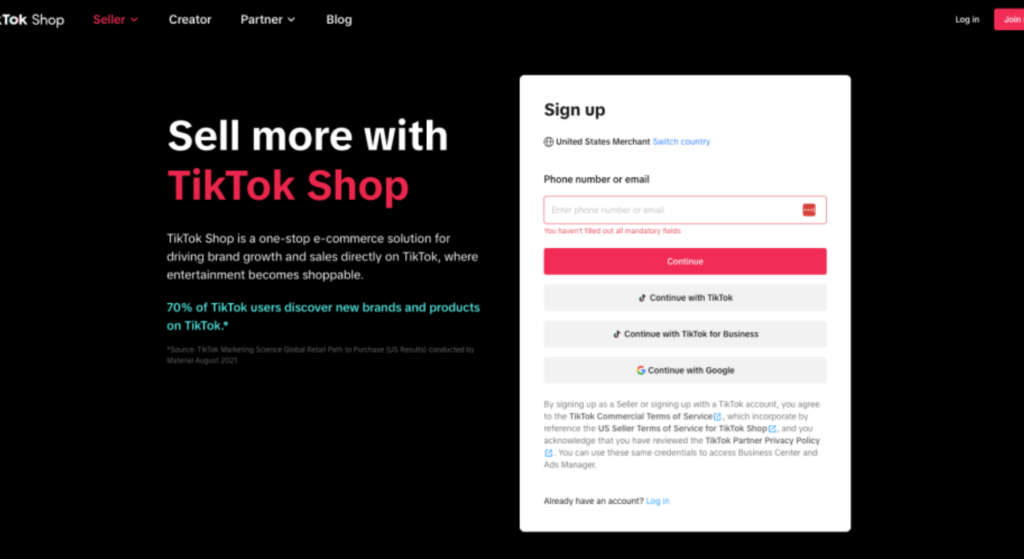
This is the part most tutorials skip over the actual UI path, not just the concept.
To set up a Shop Tab Showcase for different categories, follow these steps:
- Log into TikTok Seller Center at seller-us.tiktok.com (or your regional equivalent)
- Navigate to My Store → Showcase in the left sidebar
- Click Add Showcase in the top right corner
- Enter a showcase name (keep it under 20 characters more on naming below)
- Upload a cover image (recommended size: 800×800px square, JPG or PNG)
- Click Add Products and select the items for this category
- Set the showcase as Visible and click Save
- Repeat for each additional product category
Each step takes under two minutes once your cover images are ready. The bottleneck for most sellers isn’t the platform, it’s not having the images prepared in advance.
Naming Your Category Showcases: The Three-Word Rule
Showcase names appear as tabs on your storefront. Short wins.
Names like Premium Hydrating Moisturizers for Dry Skin don’t display properly on mobile they truncate. Names like Skincare, Makeup, or Hair Tools display cleanly and communicate instantly.
The three-word rule: category + qualifier + optional emoji. Examples that work:
- Skincare Essentials 🌿
- Home Decor
- Best Sellers ⭐
- Under $20
- New Arrivals
Avoid generic names like Products or Items. They tell the customer nothing. And avoid overly creative names that require explanation if someone has to guess what The Glow Edit contains, you’ve already lost them.
Or maybe I should say it this way: name your showcase for the customer who’s never heard of your brand, not the one who’s already a fan.
Cover Images: The Visual Layer Most Sellers Ignore
Your showcase cover image is the thumbnail the customer sees before they tap. It carries the same visual weight as a YouTube thumbnail.
Canva is the tool most TikTok sellers use for this it’s free, has mobile-ready templates, and lets you maintain a consistent visual style across all your category covers. Create a simple template: brand color background, category name in bold text, one product image. That’s it.
I’ve seen conflicting advice here: some sources say lifestyle photos outperform flat-lay product images for showcase covers, others say the opposite. My read: use whichever matches your overall brand aesthetic. Consistency matters more than the specific style choice.
Three things your cover image must communicate in under two seconds:
- What category this is
- That it belongs to your brand (consistent color/font)
- That there’s something worth tapping into
How to Structure a Mixed-Inventory Shop Across Multiple Categories
This is the scenario TikTok Seller University doesn’t address at all. You sell beauty AND home goods AND maybe some fashion accessories. How do you organize that without your storefront looking like a dollar store?
The answer is a three-tier showcase hierarchy.
Tier 1 Primary Categories (always visible, always first)
These are your main product types. If you sell beauty and home, these are your first two showcases. They appear first on your Shop Tab and capture the broadest customer segments.
Tier 2 Sub-Category or Use-Case Showcases
These go deeper. Under beauty, you might have Skincare and Makeup as separate showcases. Under home, Bedroom and Kitchen. Not every shop needs this level; only add Tier 2 showcases if you have at least 8–10 products per sub-category.
Tier 3 Promotional Showcases (temporary or rotating)
Sale, New Arrivals, Best Sellers, Holiday Picks. These sit at the top of your showcase list; they should be the FIRST thing a visitor sees because they capture both browsers and deal-seekers simultaneously.
Look, if you’re running a mixed-inventory shop and trying to organize it into a single showcase, here’s what actually works: lead with your promotional showcase, follow with your top-performing category, then layer in the others. Don’t alphabetize. Don’t guess. Sequence by revenue or by the category you want to grow.
Showcase Sequencing: Which Category Goes First?
The first showcase a customer sees gets the most clicks. Full stop.
Put your highest-converting category in position one. If you don’t know which that is yet, use your best-selling product category as a proxy. You can reorder showcases at any time inside Seller Center by dragging them in the Showcase management panel.
Some experts argue you should put New Arrivals first to signal an active, updated store. That’s valid if you add new products frequently weekly at minimum. But if your new arrivals section sits stale for three weeks, it damages trust more than it builds it. Lead with what converts.
Common Mistakes That Break Your Showcase Strategy

Mistake 1: Creating showcases but never adding products to them
An empty showcase with a name and cover image is worse than no showcase; it signals an abandoned storefront. Only create a showcase when you have at least 4 products to fill it.
Mistake 2: Using the same cover image for every showcase
Identical visuals destroy the purpose of category separation. Each showcase needs a distinct cover. Same brand colors, different imagery.
Mistake 3: Setting showcases to “Hidden” and forgetting them
Hidden showcases don’t appear on your Shop Tab. If you built one for a seasonal promotion, check that it’s set to Visible before the campaign starts. This sounds obvious. It gets missed constantly.
Mistake 4: Ignoring mobile preview
Your showcase layout looks different on mobile than in Seller Center’s desktop editor. After saving, open your TikTok profile on your phone and tap the Shop Tab. Check that showcase names aren’t truncating and cover images are cropping correctly.
What most guides skip is this: always QA your storefront from a customer’s perspective, not an editor’s perspective. The Seller Center preview is not accurate enough to rely on.
FAQs
Q: What’s the best way to organize my TikTok Shop by category?
A: Create separate showcases for each product type inside TikTok Seller Center under My Store → Showcase. Name each one clearly (e.g., Skincare, Home Decor), add a branded cover image, and assign relevant products. Lead with your best-performing category.
Q: How do I add a showcase to my TikTok Shop?
A: Go to TikTok Seller Center, click My Store, then Showcase, then Add Showcase. Enter a name under 20 characters, upload an 800×800px cover image, add products, set it to Visible, and save.
Q: Should I create one showcase or multiple showcases for my TikTok Shop?
A: If you sell products across two or more categories, use multiple showcases one per category. Single-category shops can use one showcase, but adding a Best Sellers or New Arrivals showcase alongside it improves navigation.
Q: Why does my TikTok Shop showcase not show up on my profile?
A: The most common reason is that the showcase is set to Hidden in the Seller Center. Go to My Store → Showcase, find the showcase in question, and toggle it to Visible. Also confirm you have at least one active product assigned to it.
Q: When should I update my TikTok Shop showcase layout?
A: Update your showcase sequence whenever your top-selling category changes, when you launch a promotion, or when you add a new product line. Reviewing your showcase structure monthly is a reasonable cadence for most small shops.
This guide covers showcase configuration for sellers with active TikTok Shop accounts. It does not address showcase features for TikTok affiliate creators, shops using the TikTok app’s built-in product linking without a Seller Center account, or market-specific features that may differ outside the US, UK, and Southeast Asian regions.